
Available at no cost to Pathways Learning (formerly ScootPad) users for the 2025–2026 school year, AI Teacher Tools marks a meaningful step forward in expanding the Pathways Learning Studio with innovative, time-saving resources.
Here’s How to Get Your Free Access
All Pathways Learning (formerly ScootPad) users will automatically receive an email between September 18 and September 30 with the subject line “Register for Your Free AI Teacher Tools.”
- From the email, click “Complete Your Registration” to get started. You will be asked to set up a password to log in.
- If you don’t see this email in your inbox, please check your spam folder.
- Once you’ve set your password, go to the AI Teacher Tools sign-in page and sign in with your email and your new password. Or you can paste this link into your browser: https://www.lessonplanet.com/auth/users/plsea_sign_in
- Please bookmark the AI Teacher Tools sign-in page (or the above link) so you can return to log in later.
If you need help registering for free access to the AI Teacher Tools or with logging in, contact us at Support@LearningExplorer.com. We’re here to help!

Select a Tool
Maybe you’d like to create a lesson plan, a short quiz, a vocabulary list, or some other type of instructional support. There are more than 80 tools to choose from.
First, from the top menu, choose the category you desire (e.g., Planning, Instruction, Engagement, etc.). Then, from those categories, choose the tool that best matches your needs. Each tool is designed for ease of use and quick results, making it simple to experiment and efficiently generate resources to support your teaching.

Customize Each Tool
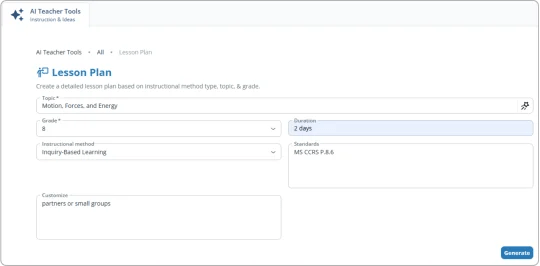
Each AI Teacher Tool allows you to customize details such as topic, grade level, and learning standard. You can further customize with information such as sample text, success criteria, or target reading level.
Generate and Refine Your Results
Once you’ve entered your details, click Generate to see your AI-created content. The AI Teacher Tools sometimes take a few seconds to process your request and generate a response. Once you’ve reviewed the results, you can:
- Edit the results directly in the output area to fine-tune it for your classroom.
- Use the Copy button to copy and paste into your preferred platform (Google Docs, MS Word, or LMS).
- Click Regenerate to expand or refine the results until they fit your needs.
- Click the star symbol in the Topic bar to find related topics you may be interested in.
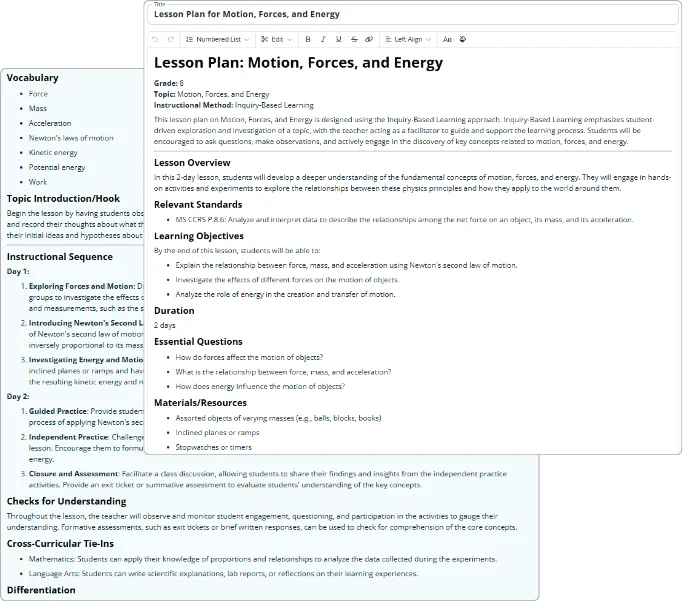
Example of a Lesson Plan
Guidelines for Success
When working with AI prompts, keep these guidelines in mind:
- Treat AI-generated content as a starting point—review and edit the content before using it with students.
- Always check for bias and accuracy.
- Safeguard student and teacher privacy.
- The more specific and detailed your inputs, the better the results.
And remember, always follow your school or district’s policies when it comes to using AI tools for educational purposes.
Share Your Feedback
Your input helps us improve! Share your suggestions directly through the Feedback tab in the AI Teacher Tools module or email us at support@learningexplorer.com.

You must be logged in to post a comment.